Add an Animated Avatar to Your Chat Widget in Studio
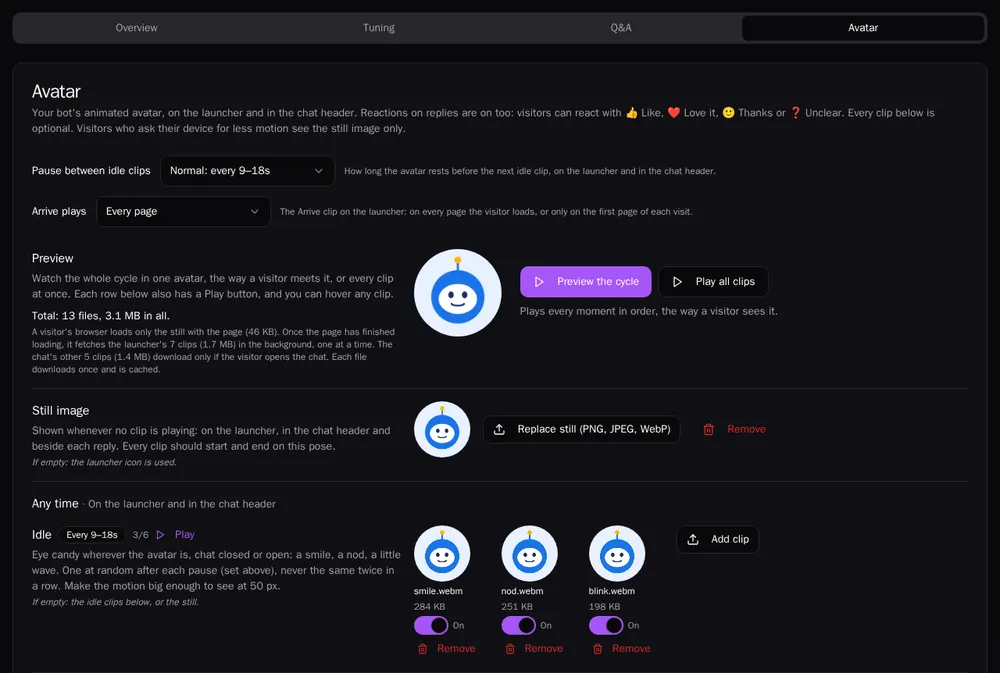
Your chat widget can show an animated avatar: a face for your bot that moves as visitors chat. In Studio, open your bot and go to Advanced → Avatar. Upload a still image, then add short clips for the moments you want to bring to life, such as a wave when the page loads.
What Is the Animated Avatar?
The avatar is your bot's face in the chat widget. It appears on the chat button and in the header of the open chat. Its still image also shows beside each of the bot's replies.
Most of the time, visitors see the still image. At set moments, a short silent clip plays instead. For example, the avatar can wave when the page loads, nod while the visitor types, and move its mouth while the reply comes in.
Why Add One?
A face that moves can draw the eye to your chat button. It gives your bot a personality that fits your brand.
It also shows visitors what the bot is doing: listening while they type, thinking, then answering.
How Do I Turn On the Avatar?
Contact us to turn on the animated avatar for your bot. Once it's on, an Avatar tab appears in Studio under Advanced, next to Overview, Tuning, and Q&A.
With the avatar on, visitors can also react to the bot's answers with Like, Love it, Thanks, or Unclear.
How Do I Set Up the Avatar?
- In Studio, open your bot and go to Advanced → Avatar.
- Under Still image, choose Upload still (PNG, JPEG, WebP) and pick a square image.
- Find a moment you want to animate, such as Arrive or Talking, and choose Add clip.
- Choose Preview the cycle to watch every moment in order, the way a visitor sees it.
There's no Save button. Each upload, switch, and removal saves as soon as you make it.
Every clip is optional. A still image alone gives your bot a face, and you can add clips one at a time.
When Does Each Clip Play?
The tab lists the moments in the order a visitor meets them:
| Moment | Where it shows | When it plays |
|---|---|---|
| Idle | Chat button and chat header | Now and then, after the pause you choose. One at random, not the same one twice in a row |
| Arrive | Chat button | When a page loads |
| Mouse over, chat closed | Chat button | When the visitor moves the mouse over the chat button |
| Idle, chat closed | Chat button | Mixed in with the Idle clips |
| Open | Chat header | Each time the visitor opens the chat |
| Idle, chat open | Chat header | Mixed in with the Idle clips, while nothing else is going on |
| Mouse over, chat open | Chat header | When the visitor moves the mouse over the avatar |
| Listening | Chat header | While the visitor types, on a loop |
| Thinking | Chat header | From the visitor's question until the reply starts, on a loop |
| Talking | Chat header | While the reply comes in, on a loop |
| Close | Chat button | As the visitor closes the chat |
If a moment has no clip, the avatar plays an idle clip or shows the still image. Each row in Studio says what happens when it's empty.
Mouse-over clips play for visitors using a mouse, such as on a laptop or desktop computer.
What Files Can I Upload?
- Still image: a square PNG, JPEG, or WebP image, under 1 MB.
- Clips: square MP4 (H.264) or WebM videos, about 256 to 512 pixels wide, 2 to 4 seconds long, with no sound, under 3 MB each.
Idle rows hold up to 6 clips each, and mouse-over rows up to 3. The other moments hold one clip each.
For clips that look smooth:
- Start and end every clip on the still image's pose, so visitors don't see a jump.
- Make the looping clips (Listening, Thinking, Talking) join cleanly from end to start.
- Keep your character centered on a plain background. The avatar shows inside a circle.
- Make the motion big enough to see when the avatar is small, about 50 pixels across.
How Do I Change When Clips Play?
Two settings sit at the top of the Avatar tab:
- Pause between idle clips: how long the avatar rests between idle clips. Choose Lively (every 4 to 9 seconds), Normal (every 9 to 18 seconds, the default), or Calm (every 15 to 30 seconds).
- Arrive plays: play the Arrive clip on Every page a visitor loads (the default), or Once per visit.
To stop a clip from playing without deleting it, turn off its switch. It stays in Studio, greyed out, and you can turn it back on later. To delete a clip or the still image, choose Remove.
Will the Avatar Slow Down My Website?
The avatar is designed to keep your pages fast. Only the still image loads with the page. The chat button's clips download in the background after the page has finished loading. The chat's other clips download only if the visitor opens the chat.
Each file downloads once, then the visitor's browser reuses it. The Preview section in Studio shows the total size of your files and what a visitor downloads.
Visitors who set their device to reduce motion see the still image only.
Frequently Asked Questions
Where do I set up my chatbot's avatar in Studio?
Open your bot in Studio and go to Advanced → Avatar. Upload a still image there, and add clips for the moments you want to animate.
Why don't I see the Avatar tab in Studio?
The Avatar tab appears once the animated avatar is turned on for your bot. Contact us to turn it on.
What files can I use for the avatar?
A square PNG, JPEG, or WebP still image under 1 MB, and square MP4 (H.264) or WebM clips under 3 MB each. Clips work best at 2 to 4 seconds, with no sound.
Do I need a clip for every moment?
No. Every clip is optional. With no clip for a moment, the avatar plays an idle clip or shows the still image.
Why can't I upload or remove avatar files?
You need edit access to the bot to change its avatar. Without it, you can view the avatar and its previews but not change them.