Find Broken Links on Your Website in Studio
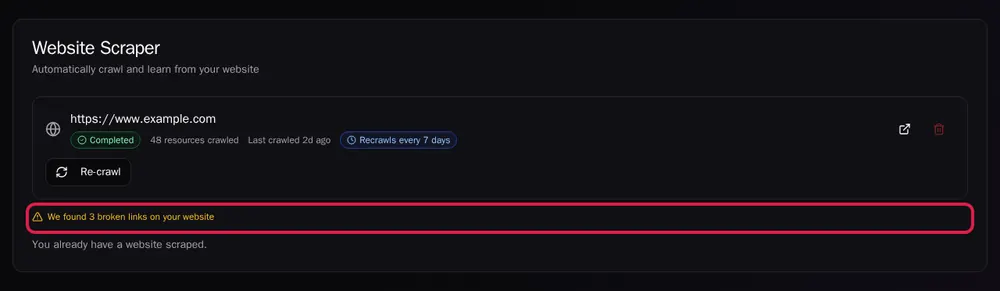
When your bot crawls your website, Studio shows you links on your site that lead to pages that no longer exist. Open your bot in Studio and go to Configure → Knowledge. Under Website Scraper, a line such as We found 3 broken links on your website appears when there are any. Click it to see each broken link and the page it's on.
You can also jump straight there: open your broken links in Studio.
What Is a Broken Link?
A broken link points to a page that isn't there anymore. Visitors who click it see a "page not found" error (404) instead of what they came for.
Broken links usually appear after a site changes: a page is renamed, moved, or removed, and older pages still link to the old address. They're easy to miss on a large site, because nothing tells you when a link stops working.
Why Do Broken Links Matter?
A broken link is a dead end. A visitor who hits one may leave instead of finding the page they wanted.
Your bot learns from your website, so a missing page is also a page the bot can't learn from. Fixing broken links keeps your site and your bot's knowledge in step.
How Does Studio Find Them?
Your bot's website crawler reads your site to learn from it. While it does, it notes links that lead to a page that no longer exists.
Studio shows a link only when the page is clearly gone (a 404 "Not Found" or 410 "Gone" answer) and the latest crawl still found it broken. That keeps the list short and focused on links you can act on.
How Do I See My Broken Links?
- In Studio, open your bot and go to Configure → Knowledge.
- Find the Website Scraper section.
- Click We found ... broken links on your website.
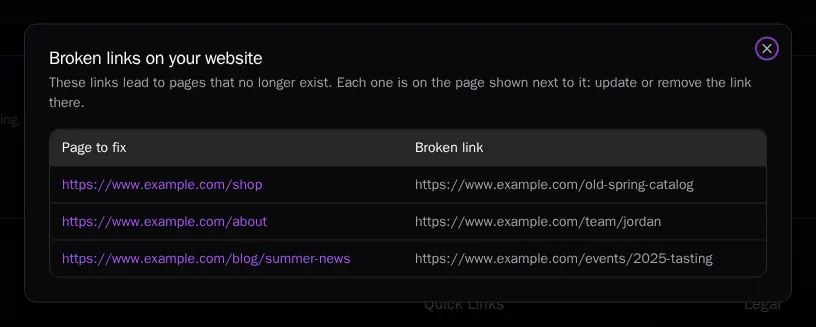
The Broken links on your website list opens. It has two columns:
- Page to fix: the page on your site that has the broken link. Click it to open that page.
- Broken link: the address the link points to.
If there's no line under Website Scraper, the latest crawl found no broken links. The Studio link then opens the Website Scraper section instead.
How Do I Fix a Broken Link?
- Open the page shown under Page to fix.
- Find the link that points to the address under Broken link.
- Update it to the page's new address, or remove the link.
- In Studio, choose Re-crawl in the Website Scraper. Or wait for the next automatic re-crawl, if your scraper shows Recrawls every ....
Once a crawl no longer finds the link broken, it drops off the list.
While a re-crawl runs, the list can be empty for a short time, even for links that are still broken. They come back as the crawl finds them again. Check the list once the Website Scraper shows Completed.
How Do I See Broken Links for All My Bots?
If you manage many bots, your Studio may have a Bot Management tile. It shows all your bots side by side, and its Web chat bots grid has a Broken links column.
- On Studio's main page, where your bots are listed, click your Bot Management tile.
- On Your bots, find the Web chat bots grid.
- Look at the Broken links column. Click a number to open that bot's broken links list.
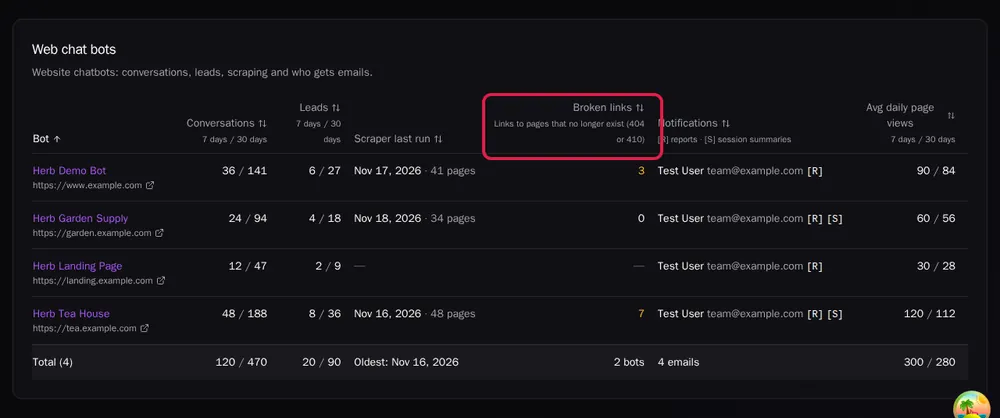
What the column shows:
- A number: how many broken links the bot's website has. It uses the same rule as the bot's own list: 404 or 410, still broken in the latest crawl.
- 0: the latest crawl found no broken links.
- —: the bot has no website scraper.
- Total row: how many bots have at least one broken link.
The grid updates once a week, so its numbers can lag behind. For the latest list, click the number or open the bot's Configure → Knowledge page.
Frequently Asked Questions
Where does Studio show broken links?
Under Configure → Knowledge → Website Scraper for each bot. A line such as We found 3 broken links on your website appears when the latest crawl found any. Click it to see the list. If you have a Bot Management tile, its Web chat bots grid also shows a Broken links count for each bot.
Which broken links does Studio show?
Links to pages that are clearly gone: the site answered 404 "Not Found" or 410 "Gone", and the latest crawl still found the link broken.
I fixed a link. Why is it still on the list?
The list updates after the next crawl. Choose Re-crawl in the Website Scraper, and the fixed link drops off once the crawl finishes. The Bot Management grid catches up at its next weekly update.
Why did my broken links list go empty during a re-crawl?
A new crawl starts the list fresh. Links that are still broken come back as the crawl finds them again. Check the list once the Website Scraper shows Completed.
Why is there no broken links line in Studio?
The line appears only when the latest crawl found broken links. No line means none were found. Your bot also needs a website scraper set up under Configure → Knowledge → Website Scraper.