Live Chat Notifications in Studio
When a visitor asks to talk to a person, Studio tells your team right away. You see a number on the Live Agent tab, hear a chime, and get a pop-up and a browser notification. With Notify Visitors, your team can also reach out first: start a live chat with someone signed in to your portal, or send a message to everyone.
Both are part of the Live Chat module.
How Does Studio Tell Me a Visitor Wants a Person?
When a visitor clicks Talk to a human, Studio alerts you in four ways:
- A number on the Live Agent tab. It counts visitors who are waiting, plus live chats with new messages.
- A chime. A short two-note sound.
- A pop-up in Studio that says Customer Requesting Agent.
- A browser notification, so you see it even when Studio isn't the window in front.
You get the same alerts when a visitor sends a new message in a live chat. That pop-up says New Message.

How Do I Set Up Live Chat Alerts?
- Sign in to Studio and open your bot.
- When your browser asks to show notifications for Studio, choose Allow.
- Go to Live Agent. Next to Live, check that the button says Sound On. Click it to switch the sound on or off.
- Keep Studio open on your bot while your team takes live chats.
Alerts come while Studio is open on any of your bot's tabs, such as Configure or Activity. You don't have to stay on Live Agent.
If you chose Block by mistake, turn notifications back on in your browser's settings for the Studio site.
What Does the Visitor See While They Wait?
- Once they start chatting, the visitor sees a Talk to a human button in the chat (or the wording you chose).
- When they click it, the chat shows Waiting for an agent.... They can cancel and go back to the bot.
- When you join, the chat shows that a person has joined, and you talk directly.
You can change this wording in Configure → Behavior → Live Agent. See Answer Visitors Live From Studio.
How Do I Answer a Waiting Visitor?
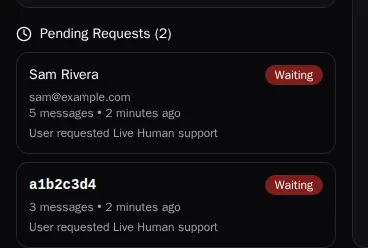
Go to Live Agent. Waiting visitors are listed under Pending Requests, each marked Waiting, oldest first. If the visitor is signed in to your site, you see their name and email.
Click a waiting chat to take it. You see the whole conversation so far, and you can reply right away.
For replying, AI-suggested replies, and ending a chat, see Answer Visitors Live From Studio.
Can Visitors Reach Us Right Now?
The bar at the top of Live Agent tells you. When all is well, it says Visitors can ask for a live agent right now.
When visitors can't see the Talk to a human button, the bar turns amber and says why. For example:
- It's outside your support hours.
- Live chat is paused.
- The Talk to a human button is turned off.

How Do I Pause Live Chat?
Click Pause live chat at the top of Live Agent. Use it when your team can't take new chats, such as during a meeting or a busy hour.
- Visitors can't ask for a person until someone clicks Resume live chat.
- Chats already in progress carry on.
- Everyone on your team sees who paused it and when.
To turn live chat off at the same times every week, set Support Hours instead. See How Do I Set Support Hours?
Can We Reach Signed-In Visitors First?
Yes, with Notify Visitors. It works with a Portal Bot: a bot inside your own app or client portal, where people sign in.
Your team can:
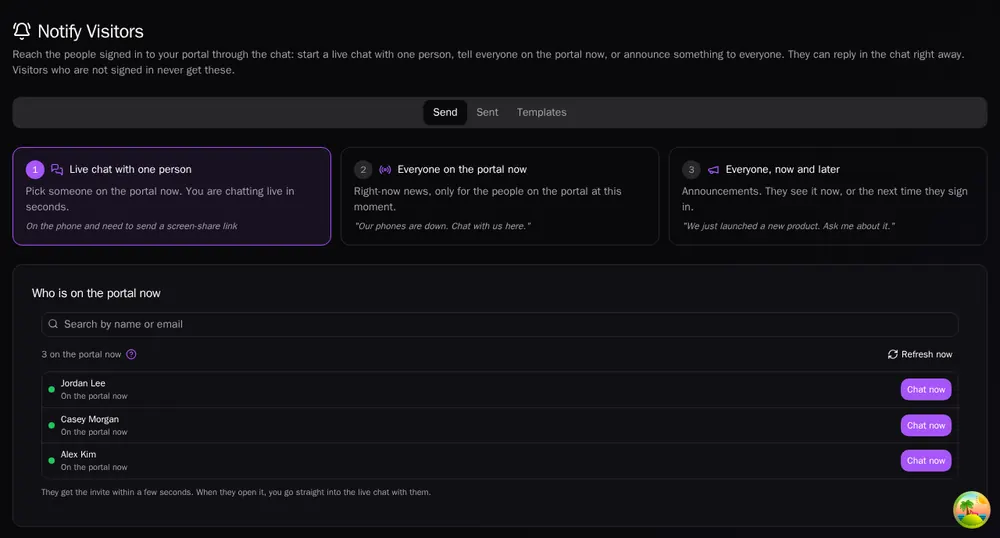
- Start a live chat with one person who is on your portal now.
- Send a message to everyone on the portal now, such as "Our phones are down. Chat with us here."
- Announce something to everyone, now and the next time they sign in.
Your message appears in their chat as the bot's message, so they can reply and ask questions right away. Only people signed in to your portal get these messages.
The Notify Visitors tab appears in Studio once it's turned on for your bot. Contact us to turn it on. Sending needs permission to edit the bot.
How Do I Start a Live Chat With Someone on My Portal?
This is useful when you're on the phone with a client and need to send them a link, such as a screen-share invite.
- In Studio, go to Live Agent and open Start a live chat. Or go to Notify Visitors → Send and choose Live chat with one person.
- Find the person. The list shows people on your portal now. Use Search by name or email, or click Refresh now.
- Click Chat now. Studio shows Inviting… with a countdown and a Cancel button.
- Within a few seconds, their chat opens with a note that you started a live chat.
- Studio opens the conversation on Live Agent. Start typing.
If they close the invite, Studio shows Declined: try again. If they don't open it within two minutes, it shows No answer: try again.
The list of people on the portal can be up to two minutes behind. Someone who just left may still show for a moment.
How Do I Send a Message to Everyone on My Portal?
- Go to Notify Visitors → Send.
- Choose who gets it:
- Everyone on the portal now: for right-now news. Only people on the portal at this moment get it.
- Everyone, now and later: for announcements. People get it now, or the next time they sign in.
- To reuse a saved message, pick one under Start from a template.
- Choose how it appears:
- Open their chat: the chat opens with your message. Best for urgent news.
- Bubble on the chat button: a short headline on the chat button. Write it in Headline on the chat button. Clicking it opens the chat with your message.
- Write your Message in the chat. To address each person by name, click + First name, + Full name, or + Email.
- For an announcement, choose Keep announcing for: 1 day, 7 days, 30 days, or Until I stop it.
- Click Send to ... on the portal now or Announce to everyone. An announcement asks you to confirm first.
Each person gets a message once. With Everyone on the portal now, someone looking at another tab gets it when they come back, for up to an hour.
Example: "Hi {first_name}, our phones are down right now. Chat with us here and a team member will help you." Jordan sees "Hi Jordan, our phones are down right now..."
How Do I See or Stop What We Sent?
Go to Notify Visitors → Sent. Each row shows when it was sent, who it went to, the message, its status, and how many people received, opened, or dismissed it. Click a row to see each person.
To stop a message, click Cancel. Nobody new gets it. People who already got it keep it.
How Do I Save Messages We Send Often?
Go to Notify Visitors → Templates. Give each template a name and a message, then click Save templates. Drag templates to change their order.
You can use a template in two places:
- On Send, under Start from a template.
- In a live chat on Live Agent: click the ... button next to the message box and pick one.
Example: a template named "Share your screen" with your meeting link saves you typing it on every call.
Can I Get Emails About Conversations Too?
Yes. Go to Activity → Notifications to choose who gets an email transcript of each conversation and a weekly summary. Transcript emails arrive after a conversation has been quiet for about an hour. See Review Conversations and Get Notified.
Frequently Asked Questions
How do I know when a visitor wants to talk to a person?
Studio shows a number on the Live Agent tab, plays a chime, and shows a pop-up and a browser notification. This happens while Studio is open on any of your bot's tabs.
Why didn't I get a sound or a browser notification?
Check three things. Studio is open on your bot. Your browser allows notifications from Studio. On Live Agent, the button next to Live says Sound On. Also check the bar at the top of Live Agent: it says if visitors can't reach you right now, and why.
Can I stop new live chat requests for a while?
Yes. Click Pause live chat at the top of Live Agent. Chats already in progress carry on. Click Resume live chat to let visitors ask again.
Can I start a live chat instead of waiting for the visitor?
Yes, with people signed in to your portal. Go to Live Agent → Start a live chat and click Chat now next to their name. Their chat opens within a few seconds.
Who gets Notify Visitors messages?
Only people signed in to your portal through your Portal Bot. You choose one person, everyone on the portal now, or everyone now and later.